
Introduction to PC Power Supply Basics
The PC power supply (PSU) is the heart of any computer system, converting AC electricity from your wall outlet into the DC voltages needed to power components like the motherboard, CPU, GPU, storage drives, and peripherals. A reliable PC power supply ensures stable performance, prevents hardware damage, and supports overclocking or upgrades. Common types include ATX, SFX for small form factors, and modular vs non-modular designs for cable management. Efficiency ratings like 80 Plus Bronze, Gold, or Platinum indicate how well the PSU minimizes energy waste as heat. Understanding these fundamentals helps diagnose issues early, as a failing PC power supply can mimic problems in other parts like the motherboard or GPU.
Signs of a Failing PC Power Supply
Recognizing symptoms of PC power supply failure is crucial to avoid data loss or hardware damage. Common signs include random shutdowns or reboots during intensive tasks, indicating insufficient power delivery. Unusual noises like buzzing or whining from the PSU suggest failing capacitors or coils. Burning smells or visible sparks point to short circuits or overheating components. If your system won’t power on at all, or only the fans spin briefly, the PC power supply may be dead. Voltage fluctuations can cause instability, shown by crashes or blue screens. Monitoring software like HWMonitor or PSU testers can confirm irregular outputs.
No Power Output: The Dead PSU Problem
One of the most frequent PC power supply failures is complete loss of power, where pressing the power button yields no response. This often stems from blown fuses, faulty power cords, or internal component burnout due to surges or age. To fix, first check the wall outlet and swap the power cord. Use a paperclip test on the 24-pin connector (shorting green and black wires) to see if the fan spins if not, the PSU is likely dead. Replacement is usually the solution, choosing a unit with at least 20% more wattage than your system’s needs for headroom.
Overheating and Thermal Shutdowns
Overheating is a prevalent issue in PC power supply units, triggered by dust buildup, poor ventilation, or inadequate cooling fans. Symptoms include automatic shutdowns during gaming or heavy loads to prevent damage. Clean the PSU vents and fan with compressed air every 6 months. Ensure your case has good airflow, and avoid placing the PC in enclosed spaces. If the fan is failing (noisy or not spinning), replace the PSU, as internal repairs are dangerous and void warranties. Opt for PSUs with 80 Plus ratings for better efficiency and less heat generation.
Fan Failure and Noisy Operation
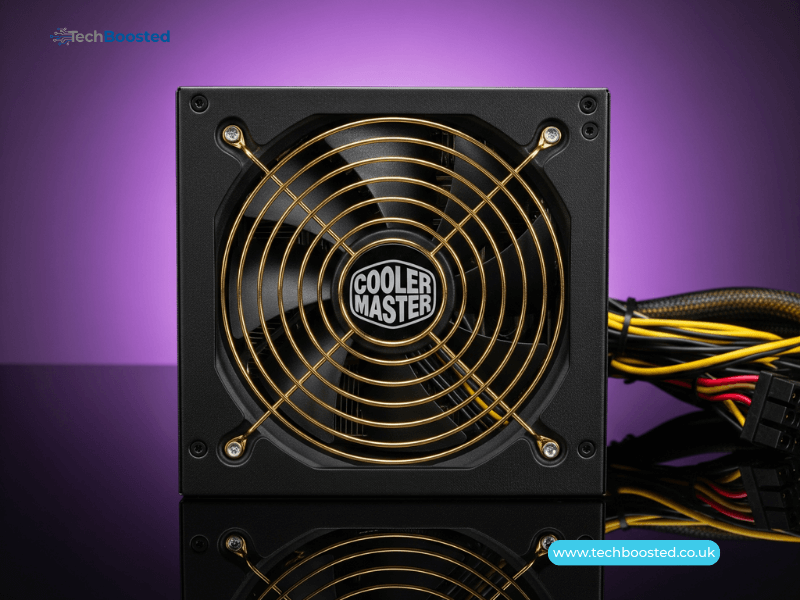
The cooling fan in a PC power supply can fail due to bearing wear, dust accumulation, or manufacturing defects, leading to excessive noise like grinding or rattling. A stopped fan causes overheating and potential shutdowns. Inspect for dust and clean gently; if the noise persists, test with a multimeter or replace the entire unit, as fan swaps require soldering and risk electrocution. Choose semi-fanless PSUs for quiet operation under low loads, or models with high-quality fluid dynamic bearings for longevity.
Voltage Instability and Fluctuations
Voltage ripple or instability from a degrading PC power supply can cause system crashes, artifacting on screens, or hardware degradation over time. Use software like OCCT or a multimeter on the 12V, 5V, and 3.3V rails to check for deviations beyond 5%. Causes include aging capacitors or poor-quality units. Fixes involve replacing the PSU with a reputable brand like Corsair, EVGA, or Seasonic, ensuring it meets your GPU and CPU power requirements. Modular PSUs allow better cable management to reduce interference.
Cable and Connector Issues
Loose, damaged, or incompatible cables are common PC power supply problems, leading to intermittent power or no boot. Inspect for frayed wires, bent pins, or melting from overloads. Always use manufacturer-provided cables mixing can cause shorts or fires. For fixes, reseat connectors firmly; if damaged, replace the modular cables or the entire PSU. Invest in sleeved extensions only from trusted sources to maintain safety and performance.
Capacitor Bulging or Leaking
Aging or low-quality capacitors in a PC power supply can bulge, leak, or explode, causing erratic behavior or total failure. Visual inspection (remove the cover carefully after unplugging and discharging) reveals domed tops or residue. This issue is more common in budget PSUs. Prevention includes buying from brands with Japanese capacitors for durability. Repair isn’t recommended replace the unit immediately to avoid motherboard damage.
Short Circuits and Electrical Surges
Short circuits in a PC power supply often result from faulty wiring, dust bridging components, or power surges. Symptoms include immediate shutdowns, sparks, or burnt smells. Use surge protectors or UPS units to mitigate surges. If a short occurs, disconnect everything and test the PSU separately. Replacement is essential, choosing PSUs with over-current, over-voltage, and short-circuit protections (OCP, OVP, SCP) for safety.
Efficiency Loss and High Energy Bills
An inefficient PC power supply wastes electricity as heat, leading to higher bills and reduced lifespan. Check the 80 Plus certification Bronze is basic, Titanium is premium. Over time, efficiency drops due to component wear. Monitor with wattage meters; if below rated, upgrade to a higher-efficiency model to save energy and reduce heat in your case.
When to Replace Your PC Power Supply
Replace your PC power supply if it’s over 5-7 years old, shows multiple symptoms, or doesn’t meet upgraded hardware demands. Calculate total system wattage using tools like OuterVision’s calculator, adding 20-30% buffer. Choose certified units from reliable brands to ensure compatibility and safety.
Conclusion
Understanding common PC power supply failures from no power and overheating to voltage issues and capacitor problems empowers users to diagnose and fix them promptly, preventing costly damage. While some issues like cleaning or cable checks are DIY-friendly, most require replacement for safety. Prioritize quality PSUs with strong protections and efficiency ratings to ensure reliable performance. Regular maintenance extends lifespan, keeping your PC running smoothly.
FAQs
What are the signs of a failing PC power supply?
Common signs include random shutdowns, unusual noises, overheating, voltage instability, and no power output.
Can I fix a noisy fan in my PC power supply?
Clean dust first; if persistent, replace the entire PSU as fan repairs are unsafe and void warranties.
How do I test if my PC power supply is dead?
Use the paperclip test on the 24-pin connector or a multimeter to check voltages; no output means replacement.
What causes PC power supply overheating?
Dust buildup, poor ventilation, or inadequate cooling clean regularly and ensure good case airflow.
Is it safe to mix PC power supply cables from different brands?
No always use manufacturer cables to avoid shorts, fires, or damage.
When should I replace my PC power supply?
After 5-7 years, if symptoms appear, or when upgrading hardware exceeding current wattage.
Stay connected with techboosted.co.uk for the latest PC hardware troubleshooting and build guides.