
Table of Contents
Microsoft Word Dark Mode is a visual interface feature designed to make long writing, editing, and reading sessions more comfortable, especially in low-light environments. As digital work hours continue to increase, many users experience eye strain, headaches, and reduced concentration due to prolonged exposure to bright screens. Dark Mode addresses this issue by replacing the traditional white and light-gray interface with darker shades that are easier on the eyes. This feature has become an essential part of modern productivity workflows, helping writers, students, office professionals, and researchers maintain focus without unnecessary visual fatigue.
The Evolution of Dark Mode in Productivity Software
Dark Mode did not appear overnight in Microsoft Word. It evolved as part of a broader trend across operating systems, mobile apps, and professional software. Users increasingly demanded interfaces that adapt to night time work, reduce glare, and feel visually balanced. Microsoft Word Dark Mode represents a shift toward user-cantered design, where comfort and accessibility are treated as productivity tools rather than optional extras. Over time, refinements have improved contrast, readability, and consistency across menus, ribbons, and panels.
Why Visual Comfort Matters for Focus
Visual comfort plays a critical role in cognitive performance. When the eyes are strained, the brain works harder to process information, leading to faster mental fatigue. Microsoft Word Dark Mode helps reduce this strain by lowering brightness levels and minimizing harsh contrasts. This allows users to stay engaged with their content for longer periods, especially during late-night writing or editing tasks. By creating a calmer visual environment, Dark Mode supports sustained focus and deeper concentration.
How Microsoft Word Dark Mode Works
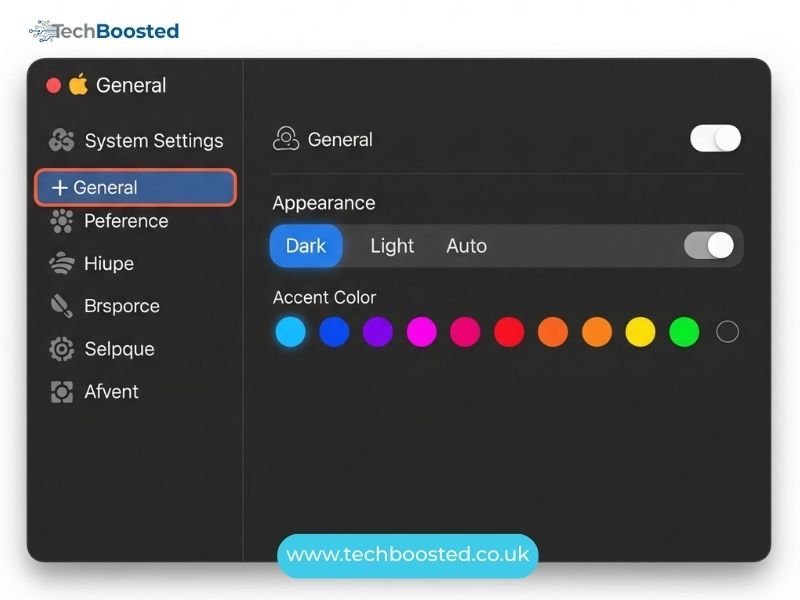
Microsoft Word Dark Mode is not a simple color inversion. It intelligently adjusts interface elements such as the ribbon, menus, side panels, and background while maintaining clear text visibility. The darker interface reduces glare, while text remains crisp and readable through carefully balanced contrast. Users also have the option to control whether the document page itself appears dark or stays white, offering flexibility based on personal preference or task requirements.
How to Enable Dark Mode in Microsoft Word
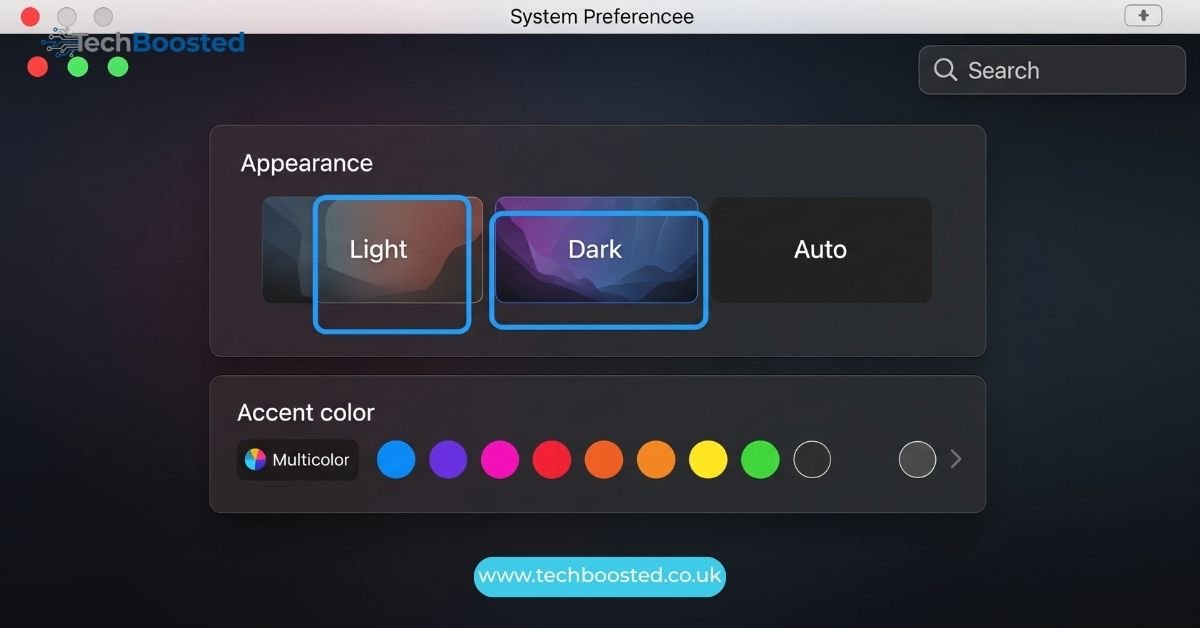
Activating Microsoft Word Dark Mode is straightforward and does not affect document formatting or saved files. Users can enable it through the application’s theme or appearance settings. Once selected, the interface updates instantly, allowing users to switch between Light Mode and Dark Mode at any time. This ease of access ensures that users can adapt their workspace quickly depending on lighting conditions or personal comfort needs.
Dark Mode and Writing Productivity
For writers and editors, productivity depends heavily on maintaining mental clarity and visual comfort. Microsoft Word Dark Mode creates a distraction-free environment by reducing brightness and visual noise. Many users report that Dark Mode helps them enter a focused writing flow, particularly when working on long documents, reports, or articles. The subdued interface allows the content itself to stand out, encouraging deeper engagement with the text.
Reading and Proofreading in Dark Mode
Reading and proofreading require high levels of attention to detail. Microsoft Word Dark Mode supports these tasks by maintaining strong contrast between text and background, which helps reduce glare-related distractions. Some users find it easier to spot errors in Dark Mode because their eyes remain relaxed, allowing them to focus more closely on wording, grammar, and formatting without discomfort.
Accessibility Benefits of Microsoft Word Dark Mode
Accessibility is one of the most important advantages of Microsoft Word Dark Mode. Users with light sensitivity, migraines, or certain visual impairments often find dark interfaces more comfortable. Dark Mode supports inclusive design by giving users control over how content is displayed. This ensures that Microsoft Word remains usable and effective for a wide range of individuals without compromising functionality or performance.
Dark Mode vs Light Mode: When to Use Each
While Dark Mode offers many benefits, it is not always the best choice for every situation. Light Mode can be more effective in bright environments such as offices with strong daylight. Microsoft Word Dark Mode is ideal for low-light or nighttime work, where reduced brightness helps prevent eye strain. Understanding when to switch between modes allows users to optimize their workspace for comfort and productivity throughout the day.
Impact on Battery Life and Device Efficiency
On devices with modern OLED or AMOLED displays, Dark Mode can contribute to improved battery efficiency because darker pixels consume less power. While the impact varies depending on hardware, Microsoft Word Dark Mode may help extend battery life during long work sessions. This is especially valuable for users who rely on laptops or tablets while traveling or working remotely.
Consistency Across the Microsoft Ecosystem
Microsoft Word Dark Mode integrates smoothly with dark themes across other Microsoft applications, creating a consistent visual experience. This unified approach reduces visual disruption when switching between tools, helping users maintain focus. The design philosophy of Microsoft emphasizes comfort, accessibility, and productivity across its software ecosystem, making Dark Mode a natural extension of that vision.
Customization Options for Better Control
Customization is a key strength of Microsoft Word Dark Mode. Users can choose whether Dark Mode applies only to the interface or also to the document background. This flexibility allows writers to tailor their environment based on task type, such as drafting, editing, or reviewing. By giving users control, Dark Mode becomes a supportive feature rather than a rigid design choice.
Common Myths About Dark Mode
A common misconception is that Dark Mode automatically improves productivity for everyone. In reality, its effectiveness depends on lighting conditions, screen quality, and personal preference. Microsoft Word Dark Mode is a powerful tool, but it works best when used thoughtfully. Understanding its purpose helps users avoid unrealistic expectations and use it where it provides the most benefit.
Best Practices for Using Microsoft Word Dark Mode
To get the most out of Dark Mode, users should adjust screen brightness to match ambient lighting. Proper posture, regular breaks, and appropriate font sizes further enhance comfort. Microsoft Word Dark Mode works best as part of a balanced digital workflow that prioritizes both productivity and well-being.
The Future of Dark Mode in Microsoft Word
Dark Mode continues to evolve as user feedback and technology advance. Future improvements may include smarter adaptive themes that adjust automatically based on time of day or lighting conditions. Microsoft Word Dark Mode reflects a broader shift toward intelligent, user-friendly software design that responds to real-world usage patterns.
Conclusion
Microsoft Word Dark Mode is more than a visual preference; it is a practical feature that supports better focus, reduced eye strain, and improved comfort during extended work sessions. With flexible customization, accessibility benefits, and seamless integration across Microsoft tools, it allows users to create a workspace that aligns with their needs. Whether writing late at night or seeking a calmer interface, Dark Mode enhances the overall Microsoft Word experience.
Frequently Asked Questions
What is Microsoft Word Dark Mode?
It is a display feature that uses darker interface colors to reduce glare and eye strain during use.
Does Dark Mode change document formatting?
No, it only affects on-screen appearance and does not alter saved or printed documents.
Can I keep the page white while using Dark Mode?
Yes, users can keep the document background white while the interface remains dark.
Is Dark Mode better for eye health?
For many users, especially in low-light environments, it can reduce visual fatigue.
Does Dark Mode improve battery life?
On supported displays, it may help conserve battery power during long sessions.
Can I switch back to Light Mode easily?
Yes, switching between Dark Mode and Light Mode is quick and reversible.
Stay connected with techboosted.co.uk for more in-depth guides, productivity tips, and software insights to help you work smarter every day.