
Table of Contents
Many iPhone users often struggle with apps that seem to disappear from their home screens or app libraries. Learning how to unhide apps on iPhone is crucial for ensuring you can access all your installed applications, whether they were hidden intentionally or accidentally. Apple provides multiple ways to hide apps, including using folders, the App Library, and restrictions. Knowing how to unhide apps on iPhone allows you to regain control of your device, restore access to important apps, and customize your home screen layout efficiently. In this guide, we will explore all methods, tips, and troubleshooting steps to help you master how to unhide apps on iPhone.
Why Apps Get Hidden on iPhone
Apps can become hidden on iPhones for several reasons. Users may deliberately hide apps for privacy, to prevent children from accessing certain apps, or to declutter their home screen. Additionally, iOS features such as the App Library, Screen Time restrictions, or accidentally placing apps in folders can make them appear hidden. Learning how to unhide apps on iPhone ensures you are not missing important functionality and can restore the visibility of apps without reinstalling them.
How to Unhide Apps on iPhone via App Library
The App Library, introduced in iOS 14, automatically organizes apps into categorized folders. Some apps may appear hidden from the home screen but are still accessible in the App Library. To unhide apps on iPhone using this method:
- Swipe left until you reach the App Library.
- Locate the hidden app by browsing categories or using the search bar at the top.
- Press and hold the app icon, then select “Add to Home Screen.”
This is one of the most straightforward ways to restore hidden apps, and mastering this method is essential for anyone looking to unhide apps on iPhone efficiently.
Using Spotlight Search to Find Hidden Apps
Spotlight Search is a powerful tool for quickly locating apps that are hidden or hard to find. To unhide apps on iPhone using Spotlight:
- Swipe down on the home screen to access the search bar.
- Type the name of the app you want to locate.
- If the app appears, press and hold its icon, then drag it to your home screen.
This method is particularly useful for apps that are hidden in folders or not appearing on your home screen, making it an effective solution for learning how to unhide apps on iPhone quickly.
Checking App Store Purchases to Restore Hidden Apps
Sometimes apps may be hidden due to Apple ID settings or previous deletions. To restore these apps:
- Open the App Store and tap on your profile picture.
- Select “Purchased” and then “My Purchases.”
- Scroll to locate the hidden app, then tap the download icon to restore it.
This approach ensures that even apps removed or hidden through Apple ID restrictions can be recovered. Understanding this method is essential when mastering how to unhide apps on iPhone for apps that seem permanently missing.
Adjusting Screen Time Restrictions
Screen Time restrictions can hide apps automatically, especially for children or shared devices. To unhide apps hidden by Screen Time:
- Open the Settings app and go to “Screen Time.”
- Tap “Content & Privacy Restrictions.”
- Select “Allowed Apps” and enable the apps you want to appear on your home screen.
This method allows you to regain visibility for apps restricted by parental controls or security settings, a vital step in how to unhide apps on iPhone for managed devices.
Unhiding Apps Using Folders and Home Screen Organization
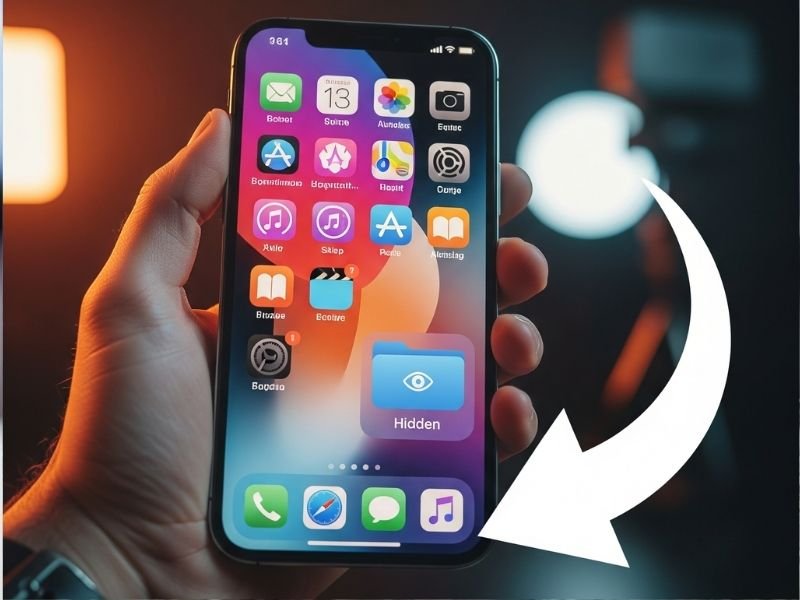
Another common reason apps are hidden is that they are placed inside folders or on a page that is not immediately visible. To unhide apps on iPhone:
- Open any folder and check for apps that may be nested inside.
- Drag the app out of the folder onto your preferred home screen page.
- Repeat this process for multiple hidden apps.
Organizing your home screen systematically ensures that apps remain visible and easy to access. Knowing this method is critical for understanding how to unhide apps on iPhone for organizational purposes.
Resetting Home Screen Layout
If apps remain difficult to locate, resetting the home screen layout can restore all apps to their default positions:
- Open Settings and go to “General.”
- Tap “Reset” and select “Reset Home Screen Layout.”
- Confirm the reset to restore apps to their original placement.
This method is useful for users who have lost track of multiple apps or accidentally hidden them in a complex home screen layout. It’s an effective solution when learning how to unhide apps on iPhone.
Using iTunes or Finder Backup to Recover Hidden Apps
For older devices or iPhones synced with iTunes, apps may be hidden due to device restores or updates. To recover them:
- Connect your iPhone to your computer and open iTunes (or Finder on macOS Catalina and later).
- Select your device and navigate to the Apps section.
- Check the apps and re-sync them to your device.
This method ensures hidden apps can be recovered from backups, making it an important tool in mastering how to unhide apps on iPhone.
Troubleshooting Apps That Don’t Appear
If apps still don’t appear after trying the above methods, consider the following:
- Ensure the app is compatible with your iOS version.
- Check that the app is not restricted by Screen Time or content settings.
- Sign out and back into your Apple ID to refresh app visibility.
- Restart your iPhone to apply changes.
These troubleshooting steps are essential for anyone struggling with how to unhide apps on iPhone when standard methods fail.
Benefits of Knowing How to Unhide Apps on iPhone
Learning how to unhide apps on iPhone offers several advantages:
- Quick access to all installed apps
- Better home screen organization
- Restored functionality for work or productivity apps
- Ability to recover apps hidden accidentally or via restrictions
Understanding these benefits encourages users to explore iOS features more confidently and manage apps efficiently.
Best Practices for Preventing Hidden Apps
To avoid apps becoming hidden in the future:
- Regularly check folders and the App Library
- Avoid enabling unnecessary restrictions in Screen Time
- Use the Spotlight search for quick access
- Organize apps logically on your home screen
These best practices help maintain a clean, accessible interface and reduce the need to constantly figure out how to unhide apps on iPhone.
Advanced Tips for Power Users
Power users can leverage additional iOS features to manage hidden apps:
- Customize home screen pages for frequently used apps
- Use App Library categories to locate apps quickly
- Enable Siri suggestions for app shortcuts
- Backup device settings to prevent accidental loss
These tips enhance your ability to efficiently manage and unhide apps on iPhone.
Conclusion
Knowing how to unhide apps on iPhone is essential for iPhone users of all levels. Whether apps are hidden due to folders, Screen Time, restrictions, or accidental deletions, mastering these techniques ensures full control over your device. By following the methods described from the App Library to Spotlight search and Screen Time adjustments you can restore access to every app and maintain an organized, efficient home screen.
FAQs
Use Spotlight Search or the App Library to locate apps and drag them back to your home screen.
Can Screen Time hide apps on iPhone?
Yes, apps may be hidden due to restrictions. Adjust settings under Screen Time > Content & Privacy Restrictions > Allowed Apps.
How can I restore an app I deleted but not uninstalled?
Go to the App Store > Profile > Purchased > My Purchases, and re-download the app.
Does resetting the home screen layout unhide apps?
Yes, resetting the layout restores all apps to default positions on the home screen.
Yes, syncing your iPhone with a computer backup can restore apps hidden due to restores or updates.
Why are some apps still not visible after unhiding?
They may be restricted, incompatible with your iOS version, or need a device restart to appear.
Stay connected for more iPhone tips, guides, and tech advice by visiting techboosted.co.uk, and explore our detailed insights on mobile device optimization to keep your iPhone running efficiently.