

Resetting an iPhone 15 can resolve a wide range of issues, from software glitches and sluggish performance to preparing the device for sale or troubleshooting persistent problems. Whether you’re dealing with a frozen screen, forgotten passcode, or simply want to start fresh, knowing how to reset iPhone 15 is essential for any user. The iPhone 15 series, including the standard, Plus, Pro, and Pro Max models, runs on the latest iOS versions as of 2026, offering multiple reset options tailored to different needs. These methods range from simple force restarts that don’t erase data to full factory resets that wipe everything, ensuring you can choose the right approach without unnecessary data loss.
Understanding Different Types of Resets on iPhone 15
When searching for how to reset iPhone 15, it’s important to distinguish between the various reset types available. A force restart (also called a hard reset) is a quick way to reboot the device without losing any data, ideal for unresponsive screens or minor freezes. Resetting all settings returns preferences like Wi-Fi passwords and wallpapers to defaults while keeping your apps and files intact. A network settings reset targets connectivity issues, and a full factory reset (Erase All Content and Settings) completely wipes the device, restoring it to out-of-box condition. Each method serves a specific purpose, helping you avoid more drastic steps when possible.
How to Force Restart (Hard Reset) iPhone 15
The force restart is often the first step in how to reset iPhone 15 when the device is frozen or unresponsive. For all iPhone 15 models, quickly press and release the volume up button, then quickly press and release the volume down button. Immediately after, press and hold the side button (power button) until the Apple logo appears on the screen this usually takes about 10-20 seconds. Release the button once the logo shows, and the iPhone will reboot. This process doesn’t erase any data and is safe to perform multiple times if needed, making it a go-to troubleshooting tool for glitches introduced in iOS updates.
Soft Restart: The Standard Way to Power Off iPhone 15
For non-emergency situations, a soft restart is a gentler option in how to reset iPhone 15. Go to Settings > General > Shut Down, then drag the power-off slider to turn off the device. Wait 30 seconds, then press and hold the side button until the Apple logo appears to turn it back on. Alternatively, press and hold the side button along with either volume button until the power-off slider appears. This method closes all apps gracefully and can fix minor software hiccups without the intensity of a force restart.
How to Reset All Settings on iPhone 15
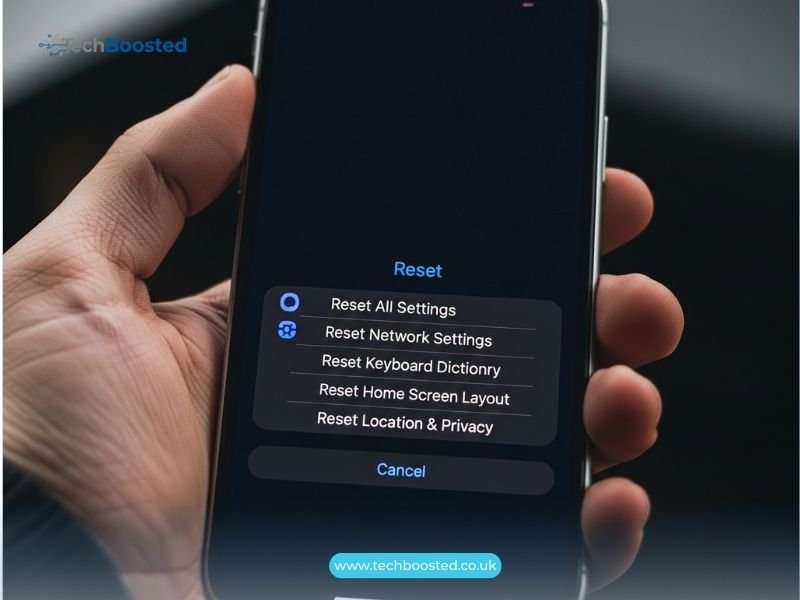
If you’re experiencing odd behavior like battery drain or app crashes but don’t want to lose data, resetting all settings is a key part of how to reset iPhone 15. Navigate to Settings > General > Transfer or Reset iPhone > Reset > Reset All Settings. Enter your passcode if prompted, then confirm. This will revert system settings such as display brightness, notifications, and privacy preferences to factory defaults without deleting photos, apps, or personal files. It’s particularly useful after major iOS updates, as it clears customized configurations that might cause conflicts.
Resetting Network Settings on iPhone 15
Connectivity problems like weak Wi-Fi or Bluetooth issues can often be solved by resetting network settings, another targeted approach in how to reset iPhone 15. From Settings > General > Transfer or Reset iPhone > Reset > Reset Network Settings, enter your passcode and confirm. This clears saved Wi-Fi networks, VPN configurations, and cellular settings, requiring you to re-enter passwords afterward. It’s non-destructive for other data and frequently resolves problems caused by corrupted network profiles.
How to Factory Reset iPhone 15 (Erase All Content and Settings)
A full factory reset is the most comprehensive method for how to reset iPhone 15, ideal before selling, trading in, or resolving deep software issues. First, back up your device via iCloud or a computer to preserve data. Then, go to Settings > General > Transfer or Reset iPhone > Erase All Content and Settings. Enter your passcode and Apple ID password if prompted, then tap Erase iPhone. The process takes several minutes, after which the device restarts as new. This erases everything, including apps, photos, and accounts, so it’s crucial for privacy when passing the phone to someone else.
Preparing Your iPhone 15 Before Any Reset
Before proceeding with any reset in how to reset iPhone 15, always back up your data. Use iCloud by going to Settings > [Your Name] > iCloud > iCloud Backup > Back Up Now, or connect to a Mac/PC for a local backup. Disable Find My iPhone if planning a factory reset (Settings > [Your Name] > Find My > Find My iPhone > Off). Update to the latest iOS version for the smoothest process, and ensure the battery is above 50% or plugged in to avoid interruptions.
How to Reset iPhone 15 Without a Passcode
If you’ve forgotten your passcode, how to reset iPhone 15 requires recovery mode. Connect the iPhone to a computer (Mac with Finder or PC with Apple Devices app/iTunes). Force restart into recovery mode: Press and release volume up, press and release volume down, then hold the side button until the recovery screen appears. On the computer, select Restore when prompted this erases and reinstalls iOS. For newer iOS versions, if Find My is enabled, you may need to remove the device from iCloud first. This method wipes all data, so backups are essential.
Common Issues and Troubleshooting During Reset
During resets, users might encounter errors like stuck Apple logos or failed verifications. If a factory reset fails, try recovery mode via computer. For “iPhone Unavailable” screens from too many passcode attempts, the only option is erasure. Ensure a stable internet connection for activation post-reset, and be patient as large data wipes can take time. If problems persist after reset, contact Apple Support, as it could indicate hardware issues.
Benefits of Resetting Your iPhone 15 Regularly
Regularly knowing how to reset iPhone 15 can extend device lifespan by clearing cached files and resolving accumulated software bugs. It improves performance, battery life, and security by removing potential malware traces. For users upgrading or selling, a proper factory reset ensures personal data privacy and smooth handover.
Conclusion
Mastering how to reset iPhone 15 empowers you to handle everything from minor freezes to complete data wipes efficiently and safely. Whether opting for a quick force restart, targeted settings reset, or full factory erase, these methods supported across iOS versions in 2026 provide reliable solutions backed by Apple. Always prioritize backups to avoid data loss, and follow official steps for the best results. With this knowledge, you can keep your iPhone 15 running smoothly or prepare it confidently for its next chapter.
FAQs
What is the difference between force restart and factory reset on iPhone 15? Force restart reboots the device without erasing data, while factory reset (Erase All Content and Settings) wipes everything and restores to defaults.
How do I force restart my frozen iPhone 15? Quickly press and release volume up, then volume down, then hold the side button until the Apple logo appears.
Can I reset iPhone 15 without losing data? Yes, use Reset All Settings or Reset Network Settings these revert preferences but keep apps and files intact.
How to factory reset iPhone 15 before selling? Go to Settings > General > Transfer or Reset iPhone > Erase All Content and Settings, after backing up and disabling Find My.
What if I forgot my iPhone 15 passcode? Put the device in recovery mode via a computer and restore it will erase all data.
Does resetting iPhone 15 remove iOS updates? No, factory reset keeps the current iOS version but may prompt for updates during setup.
For more iPhone tips and troubleshooting guides, stay connected with techboosted.co.uk on TechBoosted.co.uk!